Tritons RCSC is an IEEE-sponsored robotics club at UC San Diego that competes in the RoboCup Soccer Small Size League (SSL). The “cool part” of RoboCup is also the hard part: getting a full stack—AI → networking → onboard compute → embedded control → actuators—to behave like one system.
This repo is the chunk I worked on as TritonBot team lead: the runtime bridge that listens to AI commands from the SSL simulation environment, converts those commands into wheel RPM targets, and sends them to the robot’s embedded system—optionally with real-time analytics to compare “expected vs actual.”
For competition reasons, the repository is private, but I can share the architecture and core code snippets here.
What this repo does (high-level)
At a glance, the runtime loop looks like:
- Receive robot commands over UDP multicast from the AI/sim
- Decode commands via Protobuf
- Convert local velocity commands → per-wheel RPM
- Encode RPM → bytes + headers + action flags
- Send the packet over UART to the STM32
- (Optional) Read back telemetry and plot expected vs actual wheel velocities
Repo structure and why it’s split this way
interface/                    # Networking + hardware interfaces
tritonbot_message_processor/  # “Math layer”: velocity conversions, PID
analytics/                    # Plotting + saved graphs
proto/                        # Protobuf decoders for SSL + TritonBot messages
archive/                      # Deprecated experiments / older approaches
This separation mattered because it kept the codebase understandable under pressure:
interface/= “How we talk to things”message_processor/= “How we interpret commands”analytics/= “How we debug reality”
Core runtime: tritonbot.py
The main script loads config, binds a UDP socket, parses protobuf messages, generates wheel commands, handles dribbler/kick, and pushes bytes to the STM32.
Here’s the essence of that flow:
# tritonbot.py (simplified)
with open("config.yaml", "r") as config_file:
    config = yaml.safe_load(config_file)
server_address = config["serverAddress"]
server_port = config["tritonBotPort"]

udp_socket = init_socket(server_address, server_port)
received_robot_control = Communication.TritonBotMessage()

setup_dribbler_pwm()

while True:
    data, _ = udp_socket.recvfrom(1024)
    received_robot_control.ParseFromString(data)

    actions = received_robot_control.command

    msg = action_to_byte_array(actions)          # wheel RPM → bytes
    header = bytes([0x11]) + bytes([0x11])       # packet header

    if actions.kick_speed != 0:
        kick = bytes([0x14])
    else:
        kick = bytes([0x69])                     # “no-op” placeholder in this code

    if actions.dribbler_speed == 0:
        dribble_off()
    else:
        dribble_on()

    packet = header + msg + kick
    sendToEmbedded(packet)

    empty_socket(udp_socket)
The big win here is reliability: everything in the loop is focused on “receive → compute → transmit” with minimal hidden state.
Velocity conversions: local motion → wheel RPM
The AI provides local velocity commands (forward/left/angular). To drive an omni/mecanum-style drivetrain, we convert that into individual wheel RPMs.
The heart of that is getVelocityArray():
# tritonbot_message_processor/velocityConversions30.py (snippet)
def getVelocityArray(heading, absV, theta, rotV):
    relativeTheta = (theta - heading + 2*math.pi) % (2*math.pi)
    vx = absV * math.cos(relativeTheta)
    vy = absV * math.sin(relativeTheta)

    d = 0.13
    r = 0.05
    B = [-math.pi/6, math.pi/6, 5*math.pi/6, 7*math.pi/6]

    # compute wheel velocities, convert to RPM, apply gear ratio, rescale
    ...
    return M
Then those RPM integers get encoded into a byte array the STM32 can read:
def valuesToBytes(M):
    send = []
    for i in range(4):
        send.append(M[i]>>8 & 0xff)
        send.append(M[i]>>0 & 0xff)
    return bytes(send)
This module also includes helpers for analytics like converting telemetry hex back into RPM arrays (hexToRpmArray), which became very useful when tuning.
Hardware + networking interfaces
UDP multicast from AI (interface/ai_interface.py)
We use multicast so multiple listeners can subscribe cleanly, and we aggressively clear socket buffers so we don’t “lag behind” real-time commands.
def init_socket(address, port):
    udp_socket = socket.socket(socket.AF_INET, socket.SOCK_DGRAM, socket.IPPROTO_UDP)
    udp_socket.setsockopt(socket.SOL_SOCKET, socket.SO_REUSEADDR, 1)
    udp_socket.bind((address, port))

    udp_socket.setsockopt(socket.IPPROTO_IP, socket.IP_ADD_MEMBERSHIP,
                          socket.inet_aton(address) + socket.inet_aton('0.0.0.0'))
    return udp_socket
UART to STM32 (interface/embedded_systems_interface.py)
This layer sends byte packets to the embedded controller and reads back telemetry with a simple header check (to filter garbage).
ser = serial.Serial('/dev/ttyAMA0', baudrate=115200, timeout=0.1)

def sendToEmbedded(message):
    ser.write(message)
    ser.flush()
    return True

def readFromEmbedded():
    header_byte = ser.read(4)
    if header_byte == b'\x01\x01\x01\x01':
        data = ser.read(8)
        ser.reset_input_buffer()
        return (header_byte + data).hex()
    return
Dribbler control (PWM)
We had a couple variants depending on hardware/software stack. The “sysfs PWM” approach is very direct:
# interface/dribbler.py (snippet)
def setup_dribbler_pwm():
    os.system("echo 2 > /sys/class/pwm/pwmchip2/export")
    os.system("echo 20000000 > /sys/class/pwm/pwmchip2/pwm2/period")
    os.system("echo 1000000 > /sys/class/pwm/pwmchip2/pwm2/duty_cycle")
    os.system("echo 1 > /sys/class/pwm/pwmchip2/pwm2/enable")
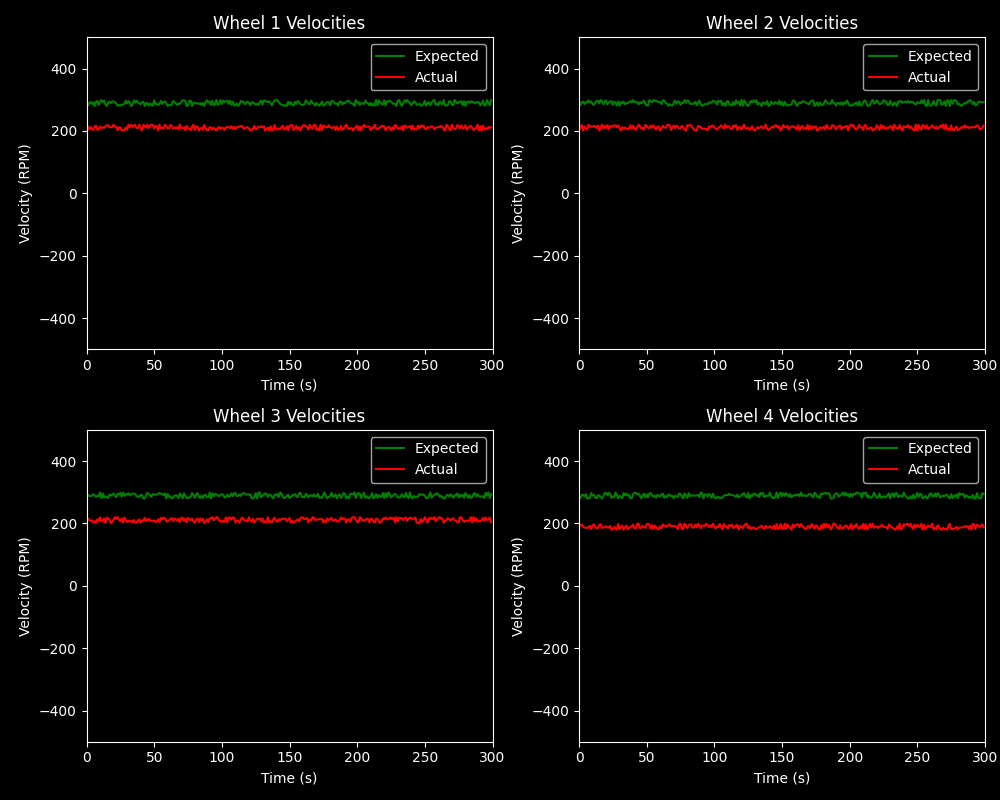
Real-time analytics: “Expected vs Actual” wheel speeds
When you’re debugging robots, the question is always: did it do what we told it to do?
That’s why the analytics/plotter.py module exists: it maintains four subplots (one per wheel), and can be updated continuously during a run.
# analytics/plotter.py (snippet)
self.fig, self.axs = plt.subplots(nrows=2, ncols=2, figsize=(10, 8))

def update_plot(self, frame, expectedVelocities, actualVelocities):
    self.t.append(frame)
    self.expectedWheelVelocities1.append(expectedVelocities[0])
    self.actualWheelVelocities1.append(actualVelocities[0])
    ...
    self.expectedWheel1[0].set_data(self.t, self.expectedWheelVelocities1)
    self.actualWheel1[0].set_data(self.t, self.actualWheelVelocities1)
    plt.pause(0.0001)
Some example outputs from analytics/saved_graphs/: